It has been weeks since Apple’s iOS 10 launched. By now, you’ve likely seen a surprise or two flash through your text messages. It might have been a preview image for a website. It could’ve been a short, funny embedded video clip. Or it may have even been a burst of confetti. Welcome to the future of texting, where messaging has become so much more than words.
The overhaul of Apple’s original iOS Messages app (not to be confused with iMessages, which is the name of the service itself, or macOS Messages, which doesn’t have all of these whiz-bang new features yet), represents a major shift for the iPhone in a couple ways. First, it turns Apple’s text-based messaging program into a feature-rich platform able to support all sorts of media, apps, and other services. Second, it does this through a slew of “hidden” controls, features, and settings — a bit like Snapchat.
The Snapchat comparison is appropriate because the new Messages app is looking to take users away from the upstart video messaging social network. To that end, Apple has a big advantage, as Messages is installed on every iPhone and iPad by default. But it could be an uphill climb, as customers will have to learn new texting tricks, find great embedded apps, and discover all the treats sprinkled into this radical redesign. This guide will help.
Exploring the App
At first glance, many users will notice few changes to iOS 10’s Messages over the previous version. That’s because when you load up the app, your various conversation threads appear just as they always have. Tapping on the notepad button at the top right will also let you compose a new, blank message as usual, and pressing “Edit” on the top left will let you delete entire threads.
Things change slightly when you open an existing message thread. As before, the text messages take up the bulk of the screen, with a back arrow on the top-lefthand side and an “info” button at the top-right.
The info button is a very under-utilized Messages feature, where users can quickly reach their friends in a variety of ways. First, there’s the FaceTime, message, and call buttons, which when pressed do exactly what you’d expect. But there’s also location-sharing options that are quite handy. “Send My Current Location” will deliver the recipient a snapshot of your location on a map, while “Share My Location” lets users continually display their whereabouts for a set period of time. And if you’re already using Apple’s Find My Friends app to keep up with your people, this info screen will automatically show where they are on a map.
The info screen is also where you can elect to send read receipts to a recipient individually (rather than to all of your contacts — a new option within iOS 10), or turn off notifications when their messages arrive, using the “Do Not Disturb” option. And finally, the info screen also gathers all the images and attachments your contact has sent you, which makes it easy to find files without having to scroll back over previous messages.
Mastering Your Messages
Back in the message thread, the screen’s bottom bar is where Apple (AAPL) has made its major changes to the Messages app — and where all the fun begins. Next to the text input field you’ll see three buttons: a camera, a heart, and an app icon.
Tapping on the camera springboards some photo options onto the screen, where the keyboard would normally appear. On the left is a miniature version of the Camera app, and on the right is the contents of your Photo Library. Dragging the images to the left reveals that the 100 most recent photos and videos are loaded into the Messages app, making it easy to access them without having to open the Photos app. The miniature Camera app on the left side is also very convenient — it lets users snap a quick photo to share, which it doesn’t save into the photo library (great for cutting down on digital clutter). You can even send quick selfies by tapping on the tiny front-facing camera button, just like in the full Camera app.
[fortune-brightcove videoid=5116325414001]
Returning to the buttons next to the text input field, touching the heart button pulls up the Message’s new Digital Touch messaging. A feature adopted from the Apple Watch, Digital Touch lets people use their fingers to write or draw scribbles that will appear on the recipient’s screen. It can be a fun way to communicate, but it takes some getting used to. The Digital Touch input consists of three columns. On the left is an area where users can select various colors for their scribbles and a camera button for taking selfies. The center column is the drawing pad. And the right column displays Digital Touch gestures, which allow animations like hearts, kisses and fireballs to appear on your selfies, and on your recipient’s screen.
The comparison to Snapchat crops up again here, as the Digital Touch messages disappear just like Snaps. Set to digitally dissolve two minutes after they are first viewed, these newfangled messages are the latest addition to Apple’s pro-privacy stance. But don’t rely too much on technology to keep your secrets. Not only can recipients can take screen captures of the messages, but Apple has programmed a “Keep” option to appear beneath the temporary missives. If tapped, this feature will save the image.
Apps Aplenty
Back to the buttons: Tapping the app icon next to the camera and heart opens what Apple calls the app drawer. This is where the Messages app morphs into something new entirely.
Think of the app drawer as an entirely separate platform just for messages. The keyboard area (like with the camera and Digital Touch) displays the apps, and the bottom row serves as an app launcher. Tapping on the four larger circles at the bottom left transforms the keyboard area into something like the iOS home screen, full of circular icons for Messages-compatible apps. Alternatively, swiping your finger from right to left on the app space brings up one app after the other, quickly revealing what they’re all about.
There are several kinds of apps compatible with Messages. The first are standard iOS apps that can generate interactive messages. For instance, Yelp users can use the Messages app to share a recent restaurant they viewed with their friends. Simply tapping on Yelp (YELP) in the app drawer will load a list of recently viewed establishments to select from. Choose one, and an interactive message generated by Yelp sends the listing to the recipient — all without having to exit Messages and open the main Yelp app. And when the recipient taps on the interactive message, their iPhone springboards right into the Yelp app, loading the restaurant in question.
Different apps use Messages’ interactive messaging function in various ways. For instance, tapping on the Dropbox Messages app reveals a file browser that’s familiar to anyone who’s used the cloud storage service. Selecting one of the files in the browser seemingly sends the file to the recipient. But really, it’s just another interactive message pointing the user to the file in Dropbox’s service. Still, using interactive messages through Messages is much more convenient than how links were shared in iOS 9, which involved diving into the app, finding the listing, and tapping the iOS “Share” button — which was always in a different place in each app.
Get Data Sheet, Fortune’s technology newsletter.
Stickers are another kind of app for Messages. Extremely popular in Asia and growing here in U.S., messaging stickers generated $268 million for Line, a Messages competitor, in 2015. That figure represents a giant pie of which Apple would love to have a slice.
Stickers are similar to emojis, only rather than being controlled by a centralized, worldwide consortium, anyone can make these fun little images and sell them through Apple’s App Store. Unfortunately, that also means almost everyone is making them. Your iOS 10-packing iPhone is likely already stuffed full of stickers from apps and games as varied as Dunkin’ Donuts and Jetpack Joyride. It’s commercialism at its worst, but cuteness at its best.
Using stickers is easier than inserting a photo, video, or emoji into your messages. Simply tap on a sticker to send it as a message, or drag the image up from the app drawer and place it anywhere in the conversation. The ability to place stickers on previous posts in the messaging thread makes them more than just a fun addition to texting — they can be really useful. For instance, the Grammar Snob stickers are a great way to correct common language errors that your friends might send your way. (See? Useful.)
The new Messages app has games, too. A great conversation-starter, turn-based games like Words With Friends have long been popular, but their in-game chat features aren’t often useful. Pulling these titles into Messages gives them new life, and might even get you back into playing. Since it’s still early for Messages as a platform, there aren’t many great games available yet. But the free GamePigeon app currently bundles together eight games (like including classics like poker and eight-ball), so it’s worth a download to see what the future of messaging will be like.
Hidden Tricks
Returning to the Snapchat comparison once more, Apple has seemingly taken an another page from the social messaging app’s playbook with some fun hidden features. Just like how Snapchat reveals a world of wild features when you tap the app in interesting ways, so too does Messages.
For instance, emoji hunters will no longer need to flick through the endless selection of little icons with Messages’ new Tap to Replace feature. Simply writing your text out and tapping on the emoji button causes certain words within the message to turn orange. Tap on those orange terms, and a bubble will appear with emoji that can replace the word.
Another great new hidden feature in Messages is called “tapback.” Looking to eliminate the mundane replies that aren’t necessarily worthy of a text message unto themselves, tapback lets users doubletap on a received message and send a brief icon as a reply. So, if someone sends you a funny comment, holster your “lol” and tapback with a “ha ha” instead. They’ll get your message, and you won’t interrupt them with your casual acknowledgement of their hilarity.
But if you do want to get a little more sincere in your response, turning the iPhone sideways reveals a larger keyboard — and a digital scratch pad with a new button found at the bottom right of the screen. Selecting this button gives users the option of hand writing out a reply, or choosing from previous (or pre-made) notes that can be sent along instead of a cold, impersonal text.
[fortune-brightcove videoid=5174608047001]
Among the most fun new features in Messages are the “send with effect” options, which let you transmit a message with balloons, confetti, lasers, and more. When you’re done composing your text, instead of just poking at the blue send button, use 3D Touch (if you have an iPhone 6S or newer) or press and hold (with an iPhone 6 or older) to pull up the various options.
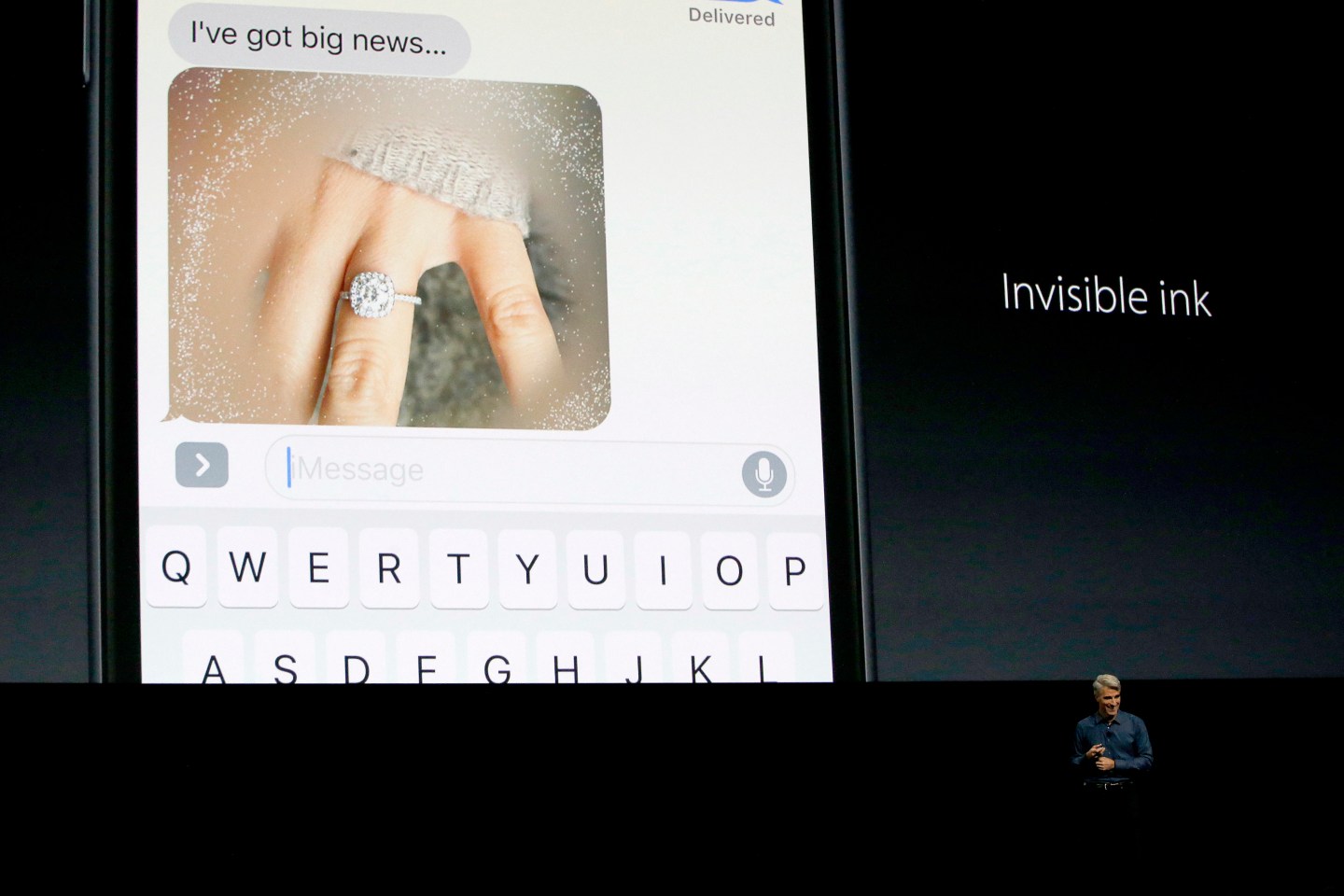
Bubble effects can be applied to a message to denote emotional meaning. Use “slam” for impact, “loud” for excitement, “gentle” for those quiet moments, or “invisible ink” to surprise your recipients. That last effect works by sending an obscured text message that the recipient can’t see until they swipe across the words — a great effect for hiding some great news.
Screen effects also help to get your message across. You can send your message with a video loop of balloons taking flight in the background, confetti pouring down from the top, fireworks bursting in the sky behind your words, a shooting star flashing in the night sky, or with lasers because, well, lasers.
As more users take advantage of these hidden tricks, more developers make Message-compatible apps, and the platform continues to evolve, there will undoubtedly be new ways to use your iPhone to communicate. Messages is among the most frequently used iOS apps — and with these new features, it’s now a lot more fun.
This article originally appeared on Time.com.